
Download LightShot – Free Screenshot Tool for Windows, Mac, Android & iOS
LightShot is a lightweight, fast, and secure screenshot tool designed for users who need to capture, edit, and share screen images effortlessly. Whether you're a student, content creator, teacher, or professional, LightShot makes taking screenshots simple and efficient. With support across multiple platforms—including Windows, Mac, Android, and iOS—this free software is ideal for anyone who frequently shares visual content. Its intuitive interface, instant capture shortcuts, and cloud-based sharing make it one of the most popular screenshot apps in 2024. Say goodbye to complicated tools and hello to a seamless experience with LightShot.
Why LightShot Stands Out Among Screenshot Tools
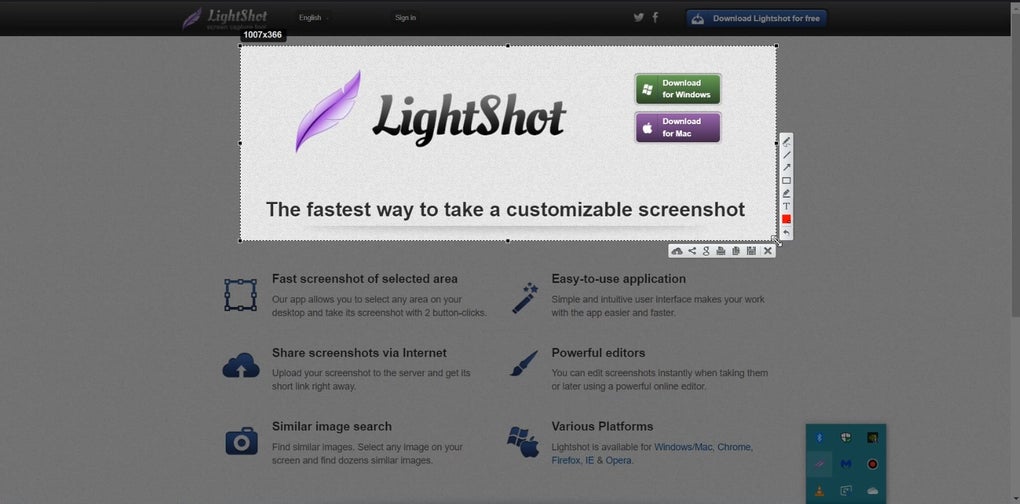
When it comes to choosing the best screenshot tool, users are often overwhelmed by the number of options available—Greenshot, ShareX, Snipping Tool++, and others. But LightShot continues to win hearts with its simplicity, speed, and smart feature set. Unlike many heavy-duty tools that require extensive setup and configuration, LightShot is ready to use right after installation. Once installed, a small icon appears in your system tray, and with a single click or keyboard shortcut (default is Ctrl + Shift + S), you can capture any part of your screen instantly.
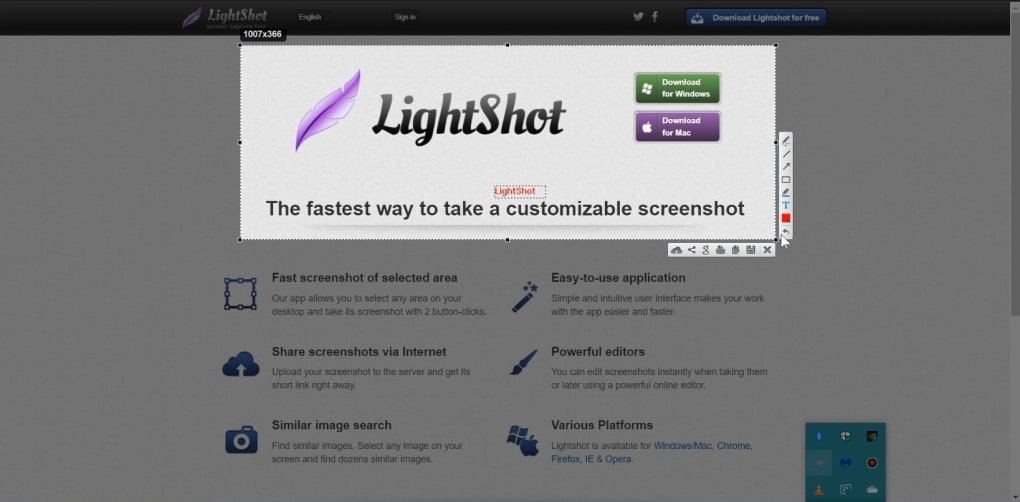
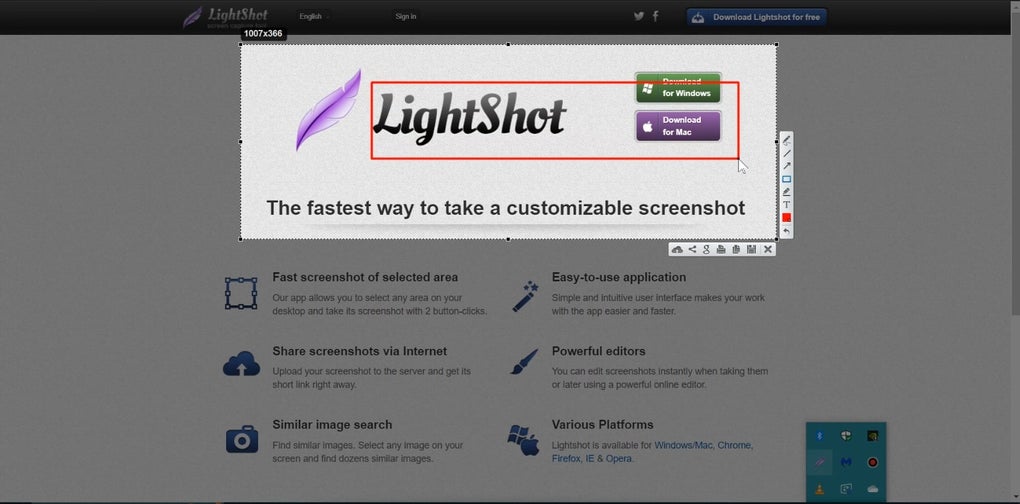
What truly sets LightShot apart is its seamless workflow. After capturing your screenshot, you're immediately taken to a lightweight editor where you can crop, blur, add arrows, write notes, or highlight important areas—all without leaving the app. The editing tools are intuitive and responsive, making it easy even for beginners to create polished visuals.
For those who need to share their screenshots quickly, LightShot offers direct cloud upload. Each image is stored securely on LightShot’s servers and assigned a unique, shareable link. This feature is a game-changer for remote teams, educators, and support staff who need to send visual feedback in real time.
Another major advantage is cross-platform compatibility. Whether you're working on a Windows PC, Mac, Android phone, or iOS device, you can use the same tool with consistent performance. The browser extension for Chrome, Firefox, and Edge further enhances functionality by enabling full-page captures—perfect for saving long web articles or social media posts. LightShot’s minimal footprint ensures it runs smoothly without slowing down your system, making it ideal for older devices or low-spec machines. With no hidden costs and a completely free version, it’s no wonder millions of users trust LightShot for their daily screenshot needs.
Key Features and How to Use LightShot Effectively
LightShot is packed with powerful yet simple-to-use features that make screen capture a breeze. Here’s a breakdown of what makes this tool so effective:
- Instant Screen Capture: Press Ctrl + Shift + S to start capturing. You can choose between full screen, window, or custom area selection.
- Advanced Editing Tools: Crop, blur sensitive content, draw arrows, add text boxes, and highlight areas directly in the built-in editor.
- Cloud Upload & Sharing: Automatically upload your screenshot to LightShot’s secure cloud and get a shareable link instantly.
- Full-Page Capture (via Browser Extension): Capture entire web pages, even those that extend beyond the visible screen.
- Multiple Screen Support: Capture content across multiple monitors without restarting the app.
- Lightweight & Fast: Minimal memory usage and quick startup time—perfect for on-the-go users.
- Mobile App Integration: Use LightShot on Android and iOS to capture and share screenshots from your phone.
Using LightShot is straightforward. After downloading and installing the software from the official website, launch it and let the system tray icon appear. Click the icon or use the shortcut to open the capture window.
Select your desired area, then click “Capture.” The editor opens automatically, where you can refine your image. When satisfied, click “Upload” to send it to the cloud. You’ll receive a link that you can copy and paste into emails, messages, or documents.
For mobile users, the app works similarly—just open it, capture, edit, and share.
Pro tip: Enable auto-upload in settings to streamline your workflow. This way, every screenshot you take is instantly shared, reducing manual steps. You can also customize the shortcut key if needed. With regular updates, LightShot continues to improve its performance and security, ensuring a safe experience for all users.
Compatibility, Installation, and System Requirements
LightShot is designed for broad accessibility, supporting multiple operating systems and devices. Whether you're using a Windows PC (7, 8, 10, or 11), Mac (OS X 10.10 or later), Android (5.0+), or iOS (11.0+), you can download and install the app with ease. The software is lightweight, requiring only a few MB of disk space and minimal RAM, making it suitable for older or low-end devices.
Installation is quick and hassle-free. Simply visit the official LightShot website, click “Download,” and choose your platform. Run the installer, follow the on-screen instructions, and you’re ready to go. No complex configurations or permissions are needed. Once installed, the app runs in the background and only appears when you trigger a capture.
For browser users, the LightShot extension is available on Chrome, Firefox, and Edge. Install it from your browser’s web store, and you’ll gain access to full-page screenshots with just one click. This is especially useful for content creators, researchers, and anyone who needs to save long web articles or design mockups.
LightShot is also regularly updated to fix bugs, improve performance, and enhance security. The developers prioritize user privacy, ensuring that uploaded images are stored securely and are only accessible via the generated link. You can also delete screenshots from the cloud at any time through your account dashboard.
Pros and Cons of Using LightShot
Pros
- Free to use with no hidden costs
- Lightweight and fast performance
- Intuitive interface suitable for beginners
- Cross-platform support (Windows, Mac, Android, iOS)
- Cloud upload with instant sharing via link
- Advanced editing tools without complexity
- Full-page capture via browser extension
- Regular updates and strong security practices
Cons
- Free version includes ads in the editor (non-intrusive)
- Cloud storage is limited—images are deleted after 30 days if not accessed
- Requires internet connection for cloud upload
- No offline editing or local save option in the free tier
- Advanced features (like custom branding) are locked behind paid plans
Frequently Asked Questions (FAQ)
Final Verdict: Is LightShot Worth It?
After thorough testing and real-world use, LightShot proves to be one of the most reliable and user-friendly screenshot tools available today. Its combination of speed, simplicity, and powerful features makes it ideal for students, professionals, educators, and casual users alike. The ability to capture, edit, and share in seconds—without the need for complex software—sets it apart from competitors.
While the free version has minor limitations like ad presence and cloud-only storage, these are outweighed by the benefits. With regular updates, strong security, and cross-platform consistency, LightShot continues to evolve. If you’re looking for a fast, free, and secure way to take and share screenshots across Windows, Mac, Android, and iOS, LightShot is an excellent choice.
Download LightShot now and experience effortless screen capture with one click.







